Play example
Handheld UGC vlogReproduced · score 75.7
Seoul summer night vlog
MiniMax H3 Max 768p retest
Source: GoodCase.aiAI video workspace · preview access
Turn a good idea into a watchable video.
EveryGen AI video generator is a free preview workspace for planning text, image and video prompts. Shape the scene, lock the motion and keep the brief in your hands.
Featured motion study
Seoul summer night vlog
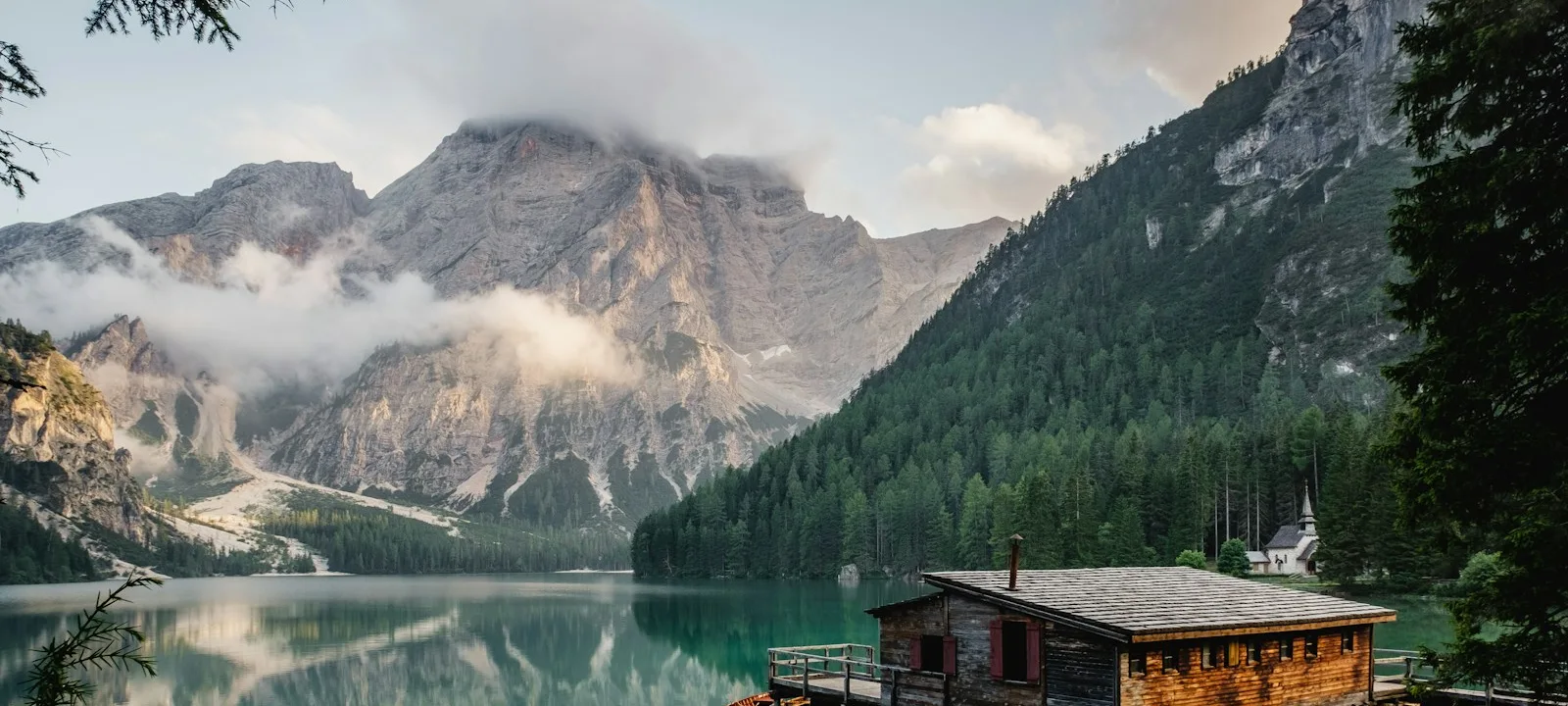 16:9 · 8–10s
Scene direction
Wide mountain lake at dawn.
One slow forward camera move.
Hold shoreline geometry.
Prompt ready for review
Watch the visual language behind strong AI video prompts: handheld texture, sound-led detail and controlled time effects.
MiniMax H3 Max 768p retest
Source: GoodCase.aiMiniMax H3 Max 768p retest
Source: GoodCase.aiMiniMax H3 Max 768p retest
Source: GoodCase.aiA clear creative workflow makes every model easier to test. Keep the decisions visible from the first sentence to the final export brief.
Start with one subject, one action and one camera move. The brief editor keeps your direction concrete.
Add a reference, timing beats or a preserve list when identity and continuity matter.
Download a clean text brief and carry it into the generation workflow you choose.
EveryGen turns the invisible parts of a video prompt into decisions you can inspect, compare and reuse.
Sound direction
Keep dialogue, ambience and visual action in separate blocks so every retake has a reason.
Motion studies
Timeline scripts, reference locks and continuous takes give your idea a shape you can review.
Social ready
Plan 9:16 framing, caption space and the first visible hook before generation.
Flexible output
Compare candidates using the same subject, ratio, duration and acceptance rule.
Start from a timed shot, a reference lock or a vertical hook. Each study is editable and ready to become your own brief.
0–2s: wide mountain lake at dawn, cabin on the right third. 2–6s: camera makes one slow forward move as mist crosses the reflection. 6–10s: hold the cabin and shoreline geometry while the mist clears slightly. One continuous take, one subject, restrained natural colour, no text, no cut.
Open the brief preview
VISUAL: A traveller stops at a windy overlook, medium profile, soft sunrise from camera left. CAMERA: slow push from medium to close, no cut. ACTION: the traveller looks to the valley, then back to camera. AUDIO: one calm English line, “Give it one more minute.” Keep wind under the voice; no music; finish on a still look.
Open the brief preview
REFERENCE: PRODUCT_A, one unbranded amber bottle. INHERIT: bottle silhouette, cap, amber glass, label position and stone contact shadow. DO NOT CHANGE: bottle count, shape or label placement. MOTION: a slow left-to-right camera move; the bottle stays planted while a soft highlight travels across the glass. No added text, hands or extra objects.
Open the brief previewEveryGen AI is evaluating a small set of model candidates. These are planning notes, not connected integrations.
Bring an idea, an image or an existing clip. Every workflow starts with a different kind of control.
EveryGen AI text to video starts with a focused brief: one subject, one action and one camera move. Describe what should happen on screen before adding atmosphere or visual style. A product slowly turning under soft light is easier to evaluate than a prompt that asks for several unrelated scenes. In this preview, you can draft that brief and download it as a text file. No prompt is sent to a generation provider. When generation becomes available, the selected model, estimated credit cost and output settings should be visible before you commit to a run.
EveryGen AI text to videoEveryGen AI image to video is planned for scenes where a starting reference matters. A clear product photograph, character portrait or landscape can establish the composition before you describe movement. Write down which details must stay consistent, and avoid asking a single image to support a completely different viewpoint. The current preview accepts a written description of your reference; image upload and generation are not available. You can still prepare a useful motion brief, choose an intended aspect ratio and save your notes locally. Use images you have permission to adapt when you later work with a generation service.
EveryGen AI image to videoEveryGen AI is exploring video to video as a separate workflow for people who already have footage. Start by deciding what needs to change and what should remain: the movement, subject, framing or overall visual treatment. This is different from simply exporting the same clip in a new format. Provider support for video references, editing and duration limits still needs to be confirmed. The preview therefore provides a planning surface, not an upload or processing service. Keep a note of your source clip, intended change and permission to use the footage so the brief is ready for a supported tool.
EveryGen video to videoEveryGen AI is planning Free, Pro and Max tiers. Prices and allowances have not been announced.
Browsing the preview and saving a text brief are free today. The plan names below do not grant video credits or promise a free generation allowance. Model access, clip length, resolution and watermark rules will be published together before any plan can be purchased.
No payment details needed. View the pricing status.
Use a product shot, social short or cinematic scene as your first direction.
EveryGen AI is in preview. Here is what you can use now, and what has not been decided.
EveryGen AI Video Generator is an independent project exploring text, image and video workflows. This website currently offers a product preview, workflow explanations and reusable prompt templates. It does not generate videos yet. You can explore the interface and download a text brief without opening an account or entering payment details.
Browsing this preview and preparing a text brief are free. Video generation is not available, and a free generation allowance has not been announced. Free, Pro and Max are planned tiers only. Before launch, the pricing page will need to state the actual credits, supported models and limits for each plan.
You cannot generate a video on this site yet. You can choose a workflow, describe your scene, select an intended aspect ratio and download the resulting text brief. The templates provide concrete starting prompts. Once a provider is connected, the site will explain the generation process and show any cost before submission.
A watermark policy has not been decided because video generation and export are not available. We do not currently promise watermark-free output on any tier. When plans launch, check the published export rules for the exact model and plan you choose, including resolution, watermark treatment and any applicable provider restrictions.
This website is hosted at everygenaivideogenerator.com and is an independent project. It is not affiliated with everygen.ai, everygen-ai.com or everygenai.app. Similar names do not establish shared ownership, accounts or subscriptions. Check the exact domain and the service’s own terms before signing in, purchasing a plan or sharing files.
The spellings everygenai and every gen ai can appear in searches, but a spelling alone does not identify a particular service. Several domains use similar names. On this site, EveryGen AI refers to this independent preview project. Verify the full website address rather than assuming results with similar wording share an operator.
We cannot identify a service from the phrase evergen ai alone. It may be a spelling variation or refer to another project. It is not evidence of an affiliation with this website. If you are looking for an existing account, check your original signup email and the exact domain before using another site.
No video model is connected in this preview. The model directory contains candidates from the project brief: Seedance, Veo, Kling, Wan, MiniMax and an image-preparation slot for Nano Banana Pro. Exact versions, availability and capabilities still require verification. Directory entries describe evaluation ideas, not integrations or partnerships that are already available.
Your next scene starts here
Build a focused brief now. Generation can come later; your direction should not have to wait.
Start a video brief